
Table of Contents
Deleting a Time-off from List View #
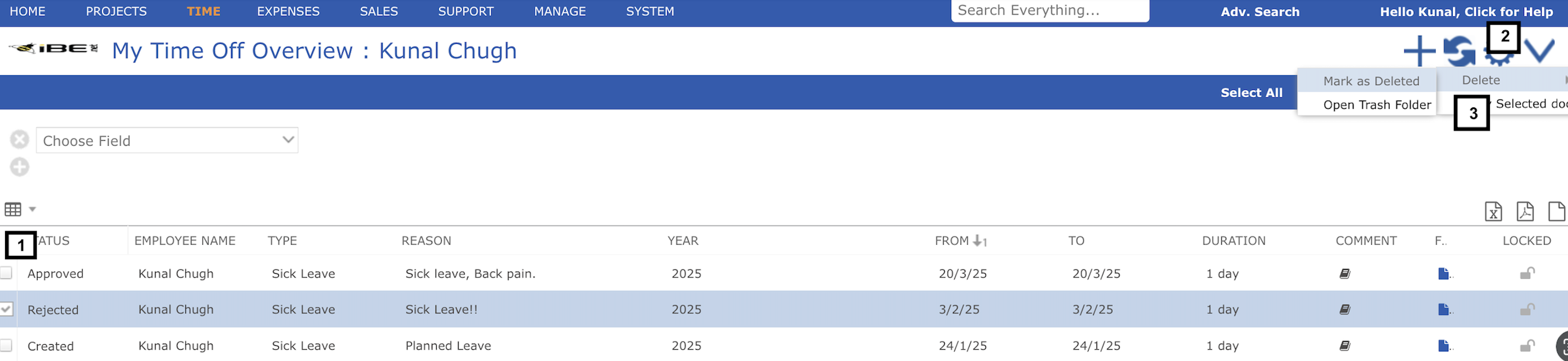
An employee can delete a Time Off request if the status is ‘Rejected’ or ‘Created’. Steps:
- Select the leave request from the list you want to delete
- Click on top right ‘V’ icon and a dropdown will open
- Click on ‘Delete’ or ‘Mark as Deleted’
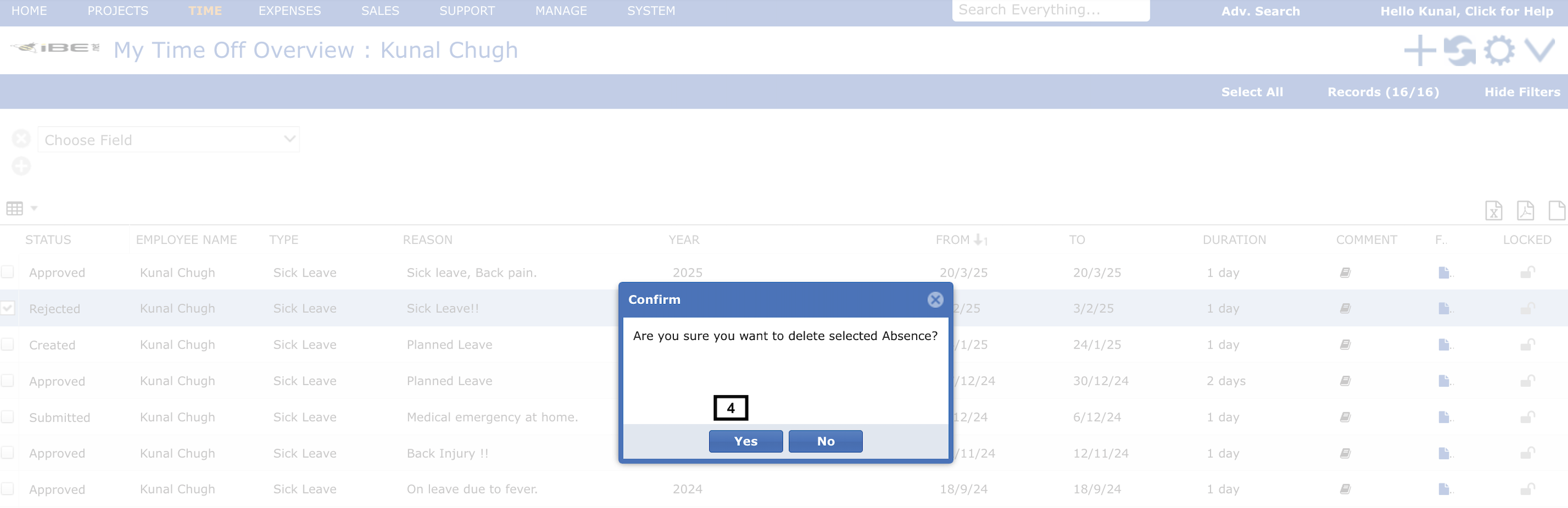
- A popup will appear to confirm deletion. Click ‘Yes’
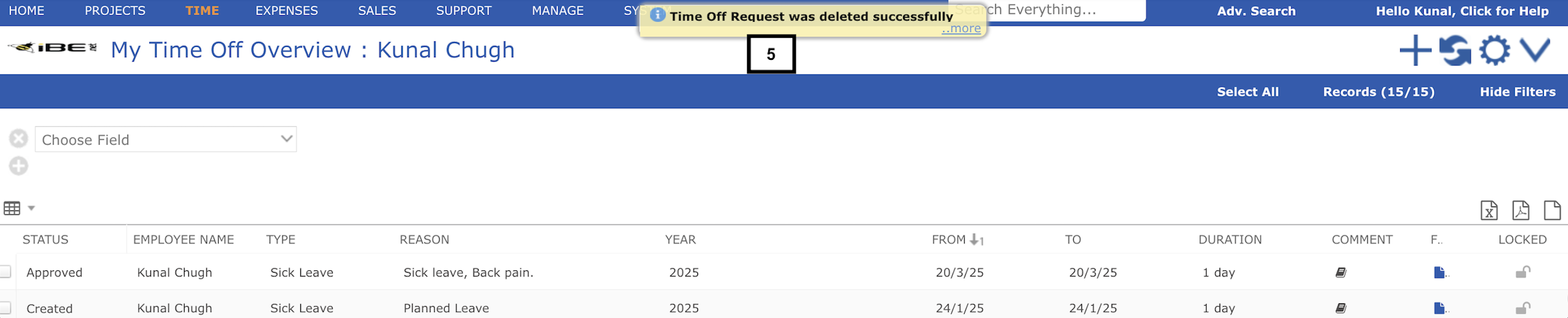
- A message will appear ‘Time Off Request was deleted successfully’
Note: if your time off request was already approved then you must cancel it first or instead of deleting it.
Deleting a Time-off from Detailed View #
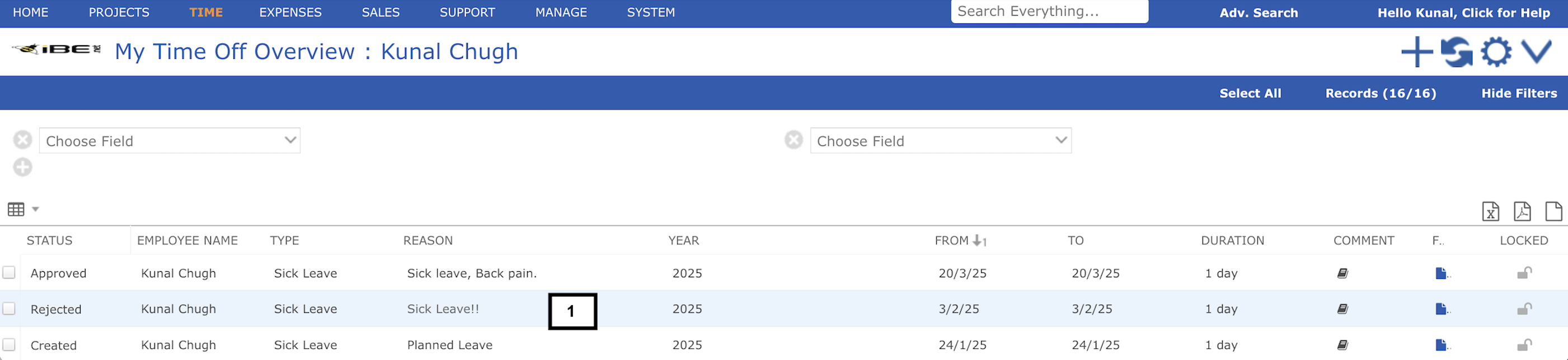
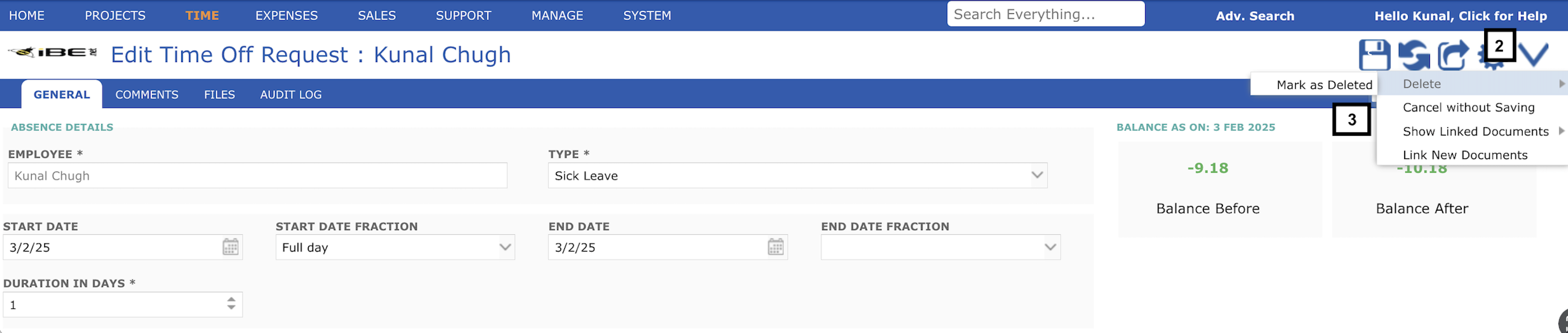
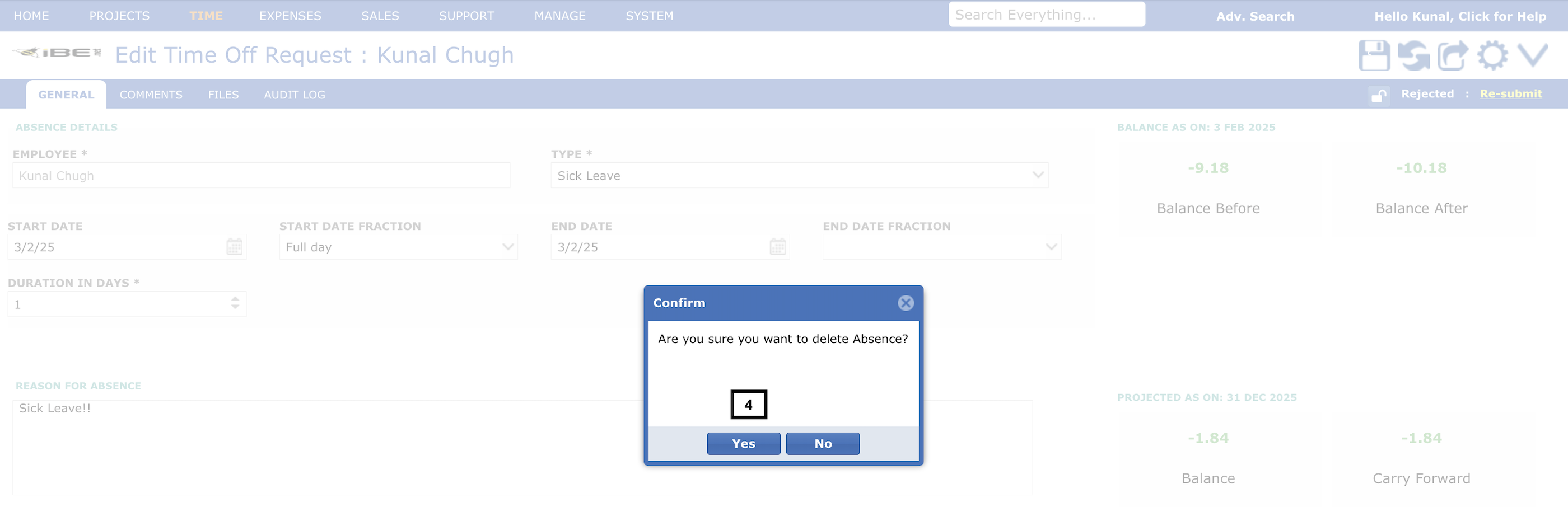
An employee can delete a Time Off request if the status is ‘Rejected’ or ‘Created’ , from the time-off details screen. Steps:
- Select the leave request from the list by double clicking the leave request. (You will be redirected to the details screen)
- Click on top right ‘V’ icon and a dropdown will open
- Click on ‘Delete’ or ‘Mark as Deleted’
- A popup will appear to confirm deletion. Click ‘Yes’


